Attaching a device
Did you purchase a preconfigured Server or Client device from our shop? Enter its S/N on the SERVERS / CLIENTS management page to ATTACH it to a device slot in your account and start using it.
Attaching a device to an account is not permanent. You can detach it from your account if you decide to stop using the service, so that it can be gifted or resold to another user.
The DETACH action has a per-device-slot cooldown of 30 days (you can attach another or the same device immediately after detaching one, but must wait 30 days before detaching again).
Prerequisites
- Preconfigured Server or Client device from the shop
- For Server device:
- License subscription is needed for your first Server device
- Extra Server subscription is needed for additional Server devices
- For Client device:
- No subscription is needed for your first Client device
- Extra Client subscription is needed for additional Client devices
Steps to attach your device
Find the device card for the device you want to attach:
- For Server device - on the SERVERS management page
- For Client device - on the CLIENTS management page
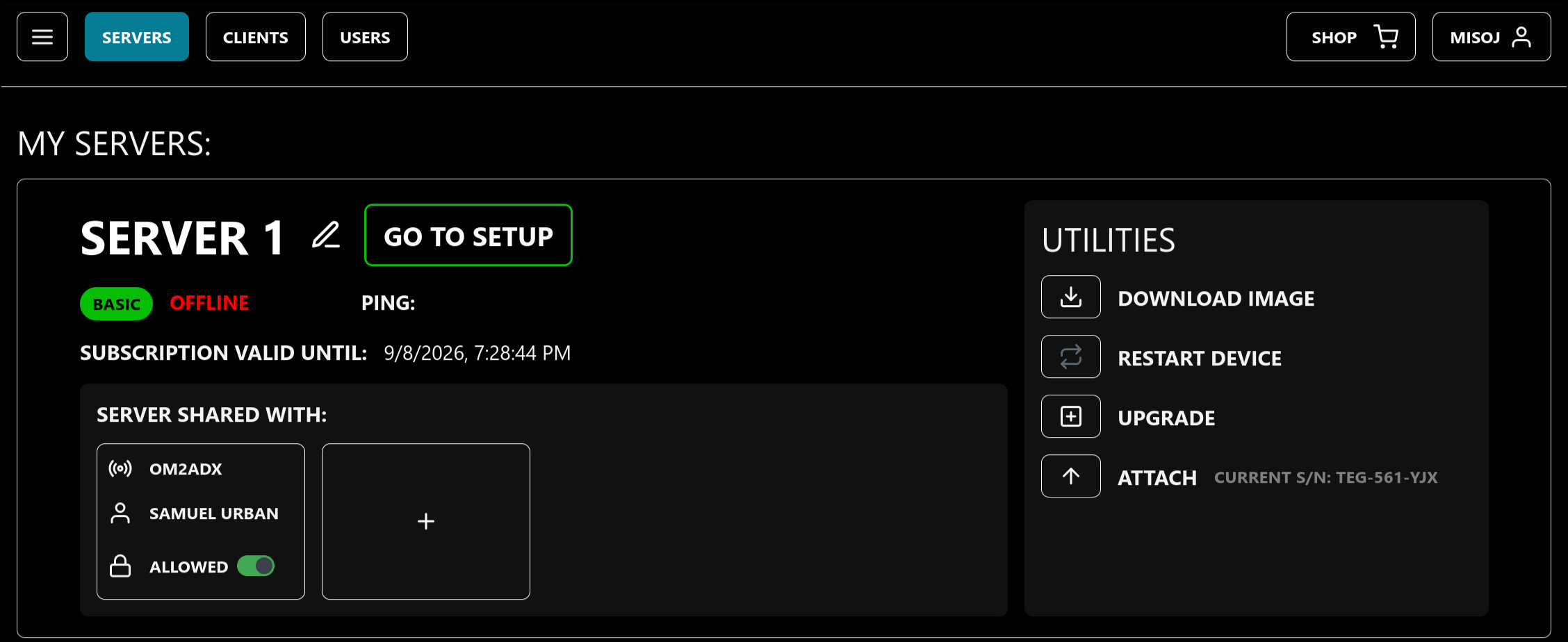
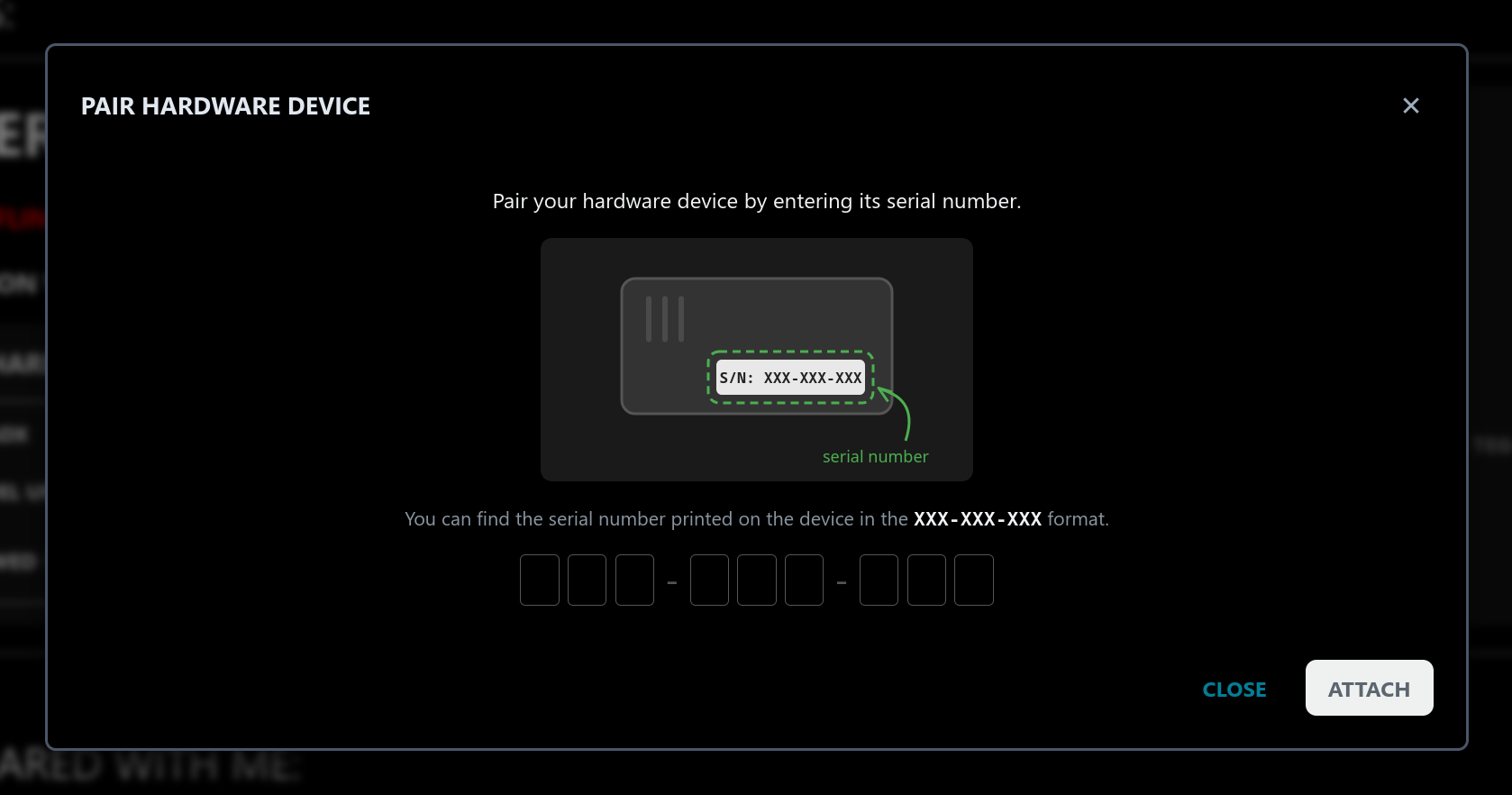
In the UTILITIES panel on the right side of the device card, click the ATTACH button. A dialog will appear. Enter the 9 characters long S/N found on the bottom side of your device and click the ATTACH button in the dialog to confirm.
After successfully attaching your device, you will see the attached S/N next to the new DETACH button in the UTILITIES panel.
Proceed with the instructions:
- for Server setup.
- for Client setup.
This may be because there is an already a hardware device attached to the device slot (a DETACH button will be present instead).
If you want to replace the already attached device in the slot (because you are upgrading from Basic to the Pro variant), press the DETACH button to remove the old device (it can be gifted or resold to other users).
If you instead want to attach another device of the same type, go to the device card of another device slot (on the SERVERS management page, you can cycle between device slots with the arrows on the side of the device card, or buttons on the bottom).
If you do not have another device slot, you can purchase an extra device subscription to unlock more slots.